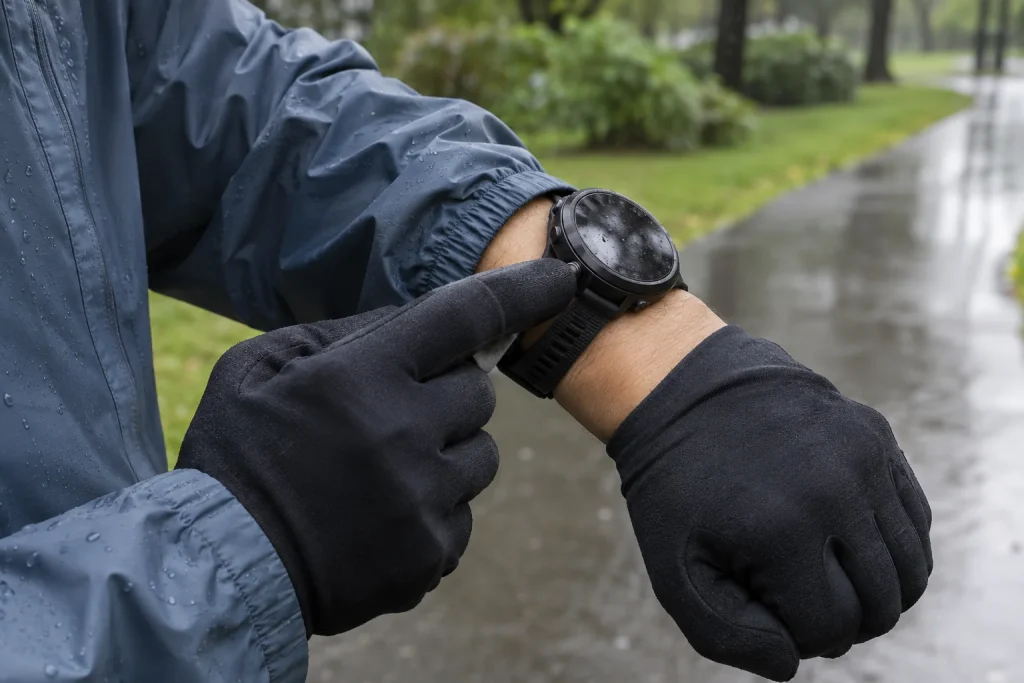
With dry hands on the sofa, switching watch pages is easy. The same action in thicker gloves, beneath a rain-jacket sleeve and while moving can be entirely different. “Buttons or touch?” rarely needs just one general answer. Many watches offer both, but function allocation, locking and interaction with clothing differ. Examine usability with your own device, actual gloves and important actions. This guide offers a detailed trial sequence and helps avoid searching complicated menus during a run because of a display problem.
Three separate questions: touch, buttons and protection
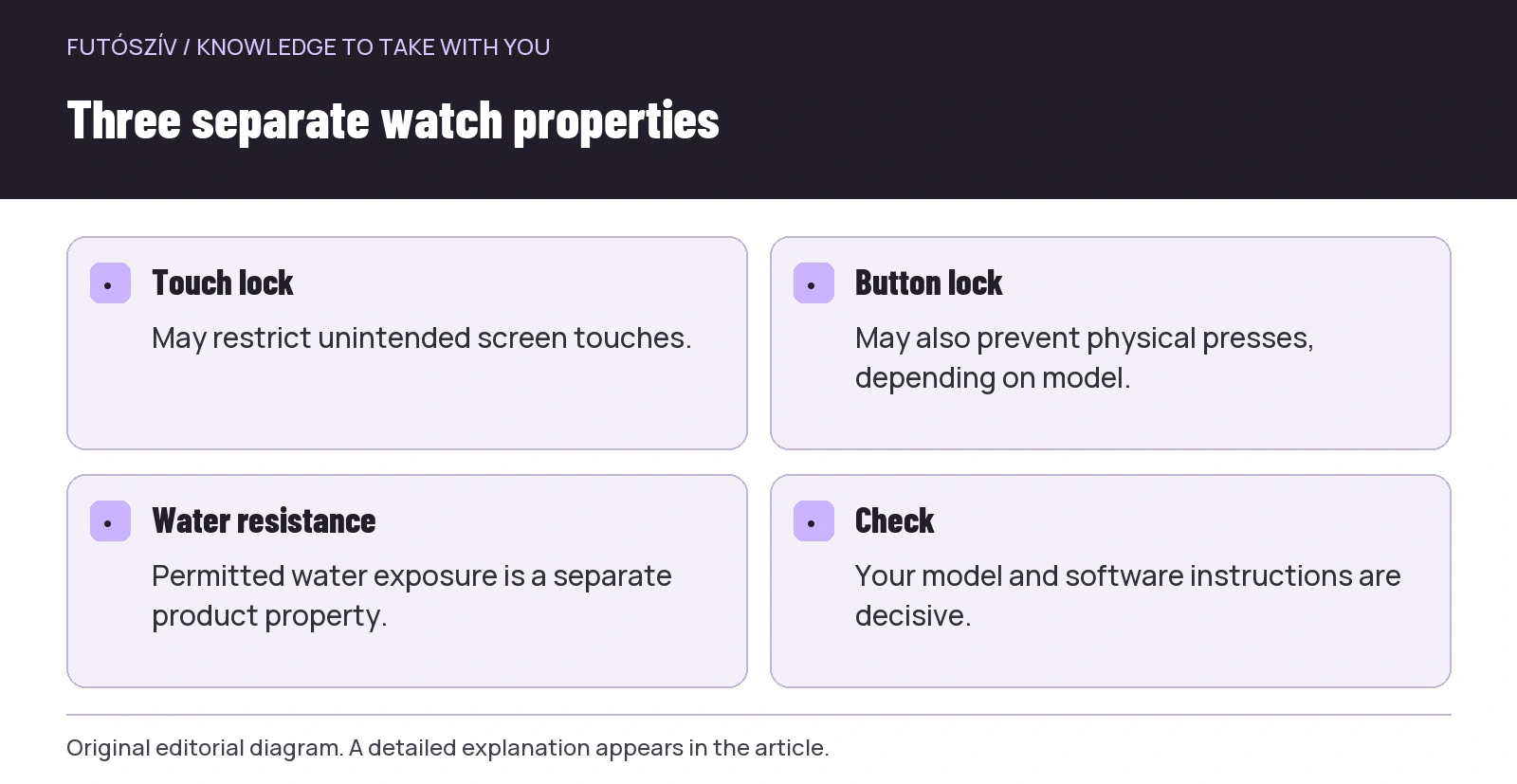
Clarify the concepts first. Disabling touch may mean the screen ignores certain contacts. Button lock can separately restrict accidental physical presses. Water resistance is a product property concerning use under specified conditions. A locked display does not automatically increase permitted water exposure. Find all three descriptions in your manual instead of inferring every function from a droplet or padlock icon.
The Apple Water Lock guide , for example, discusses preventing unintended touches and expelling water from the speaker. This is a specific system function, not a general description of locking on every running watch. Other models may control touch separately for everyday use and sport. The Forerunner 265 system settings include such separate options. Check your software’s menu; exact availability can vary by model and version.
List five important actions
Do not begin by learning the entire menu system. Name actions actually needed during your run first: start, pause, resume, page change, lap marking or saving. Priorities differ between continuous easy running and a session of manually marked sections. Navigation zoom is a separate task for which another control method may be comfortable. Keep the list short and know for each whether buttons, touch or both can access it on your watch.
Mark actions whose errors are hard to undo separately. A lap mark often cannot simply be reversed on the move, while discarding a session may permanently delete the recording. Reliable recognition matters more than speed here. Check confirmation, short and long presses and screens on which the same button changes role. A label or icon beside a button does not necessarily mean the same in every mode. A familiar system requires less guessing.
 Enlarge diagram
Text version of the diagram
- Touch lock
- May restrict unintended screen touches.
- Button lock
- May also prevent physical presses, depending on model.
- Water resistance
- Permitted water exposure is a separate product property.
- Check
- Your model and software instructions are decisive.
Assess gloves together with the watch
Put on the gloves used for running and examine more than fingertip material. Fit matters too: excess room at the tip can make aiming or finding a small button difficult. Seams, palm thickness and fabric folds can affect the action. A “touchscreen compatible” label does not prove comfortable use of every element on your watch. Try your own pairing and evaluate the completed task, not merely waking the display once.
If using glove layers, trial the whole setup too. Swiping that works with a thin liner can differ with an outer layer. Which hand holds a bottle or pole also matters: reaching for the watch is more constrained then. Do not hold dangerous items or imitate hazardous terrain during the trial; calmly observing access is enough. If operation regularly requires removing a glove, plan a known, safe method and place for that too.
A dry baseline trial in a repeatable order
First perform the selected actions bare-handed in dry surroundings. This separates unfamiliar menus from glove-related difficulty. Repeat in the same order with gloves: wake display, open the chosen page, start, pause, resume and end the trial. If making a real recording, name it clearly as a test rather than mixing it with evaluated runs. Do not race against time; consistently getting the intended result matters.
Describe errors precisely. Instead of “the gloves are bad”, try “I often open another element when swiping to page two” or “I cannot find pause beneath the sleeve”. The first concerns interface, the second access. Solutions can differ: simpler page order, another permitted control method or clothing arrangement. Detailed observation supports targeted improvement. One awkward menu item does not require judging the whole watch unsuitable.
| Task | Dry hand | Gloves | Above/below clothing | What should you record? |
|---|---|---|---|---|
| Wake display | A familiar basic action | Recognisable feedback | Access at the cuff | Can you see when the display is active? |
| Change page | Reaches the intended page | A precise action | Clothing does not catch | Does accidental swiping occur? |
| Pause and resume | An unambiguous state | A reliable button press or touch | Accessible control | Has the timer actually resumed? |
| Mark lap | A known role | No mistaken adjacent press | Cuff does not press it | Is an accidental lap created? |
| Unlock | A practised sequence | A repeatable action | Easy access | Do you know what you unlocked? |
The jacket sleeve has its own role
A cuff between glove and watch can hide the screen or press a button. Wear the full outer clothing, bend your wrist, reach forwards and let the arm return. Notice sleeve movement, contact with controls and whether the watch remains visible. This is a clothing trial, not a sensor-accuracy test. Seek comfort and access while preserving the garment’s task. Tightening a cuff is not an automatic solution to every shift.
If wearing the watch outside clothing for readability, check which measurements your model supports that way and how. Placement over fabric does not provide skin contact needed for wrist optical sensing. An existing compatible external sensor may provide another source, but understand its connection too. Convenient display position and recording method are linked decisions. Do not change wearing position while assuming unchanged measurement conditions. Always be able to name the displayed number’s source.
Do not improvise a water test in rain
Interpret permitted use through water-resistance and care instructions. A strong water jet or immersion test at home is unnecessary for learning controls. Settings preventing accidental touches can be learned dry. If later running in rain within permitted use, observe display behaviour calmly and safely. Do not press harder or substitute a sharp object for touch. The Garmin device-care information also specifically prohibits using hard, sharp objects on the display.
The same particular device instructions advise avoiding button presses underwater. This illustrates that “usable with buttons” and “buttons may be pressed without restriction in every wet situation” are different claims. Read your watch’s limits. Locking the screen in rain does not replace proper care of materials and connectors. If water or dirt obstructs operation, handle it as permitted by the manufacturer, then check state. Preserving a recording is not worth struggling in a risky place.
 Enlarge diagram
Text version of the diagram
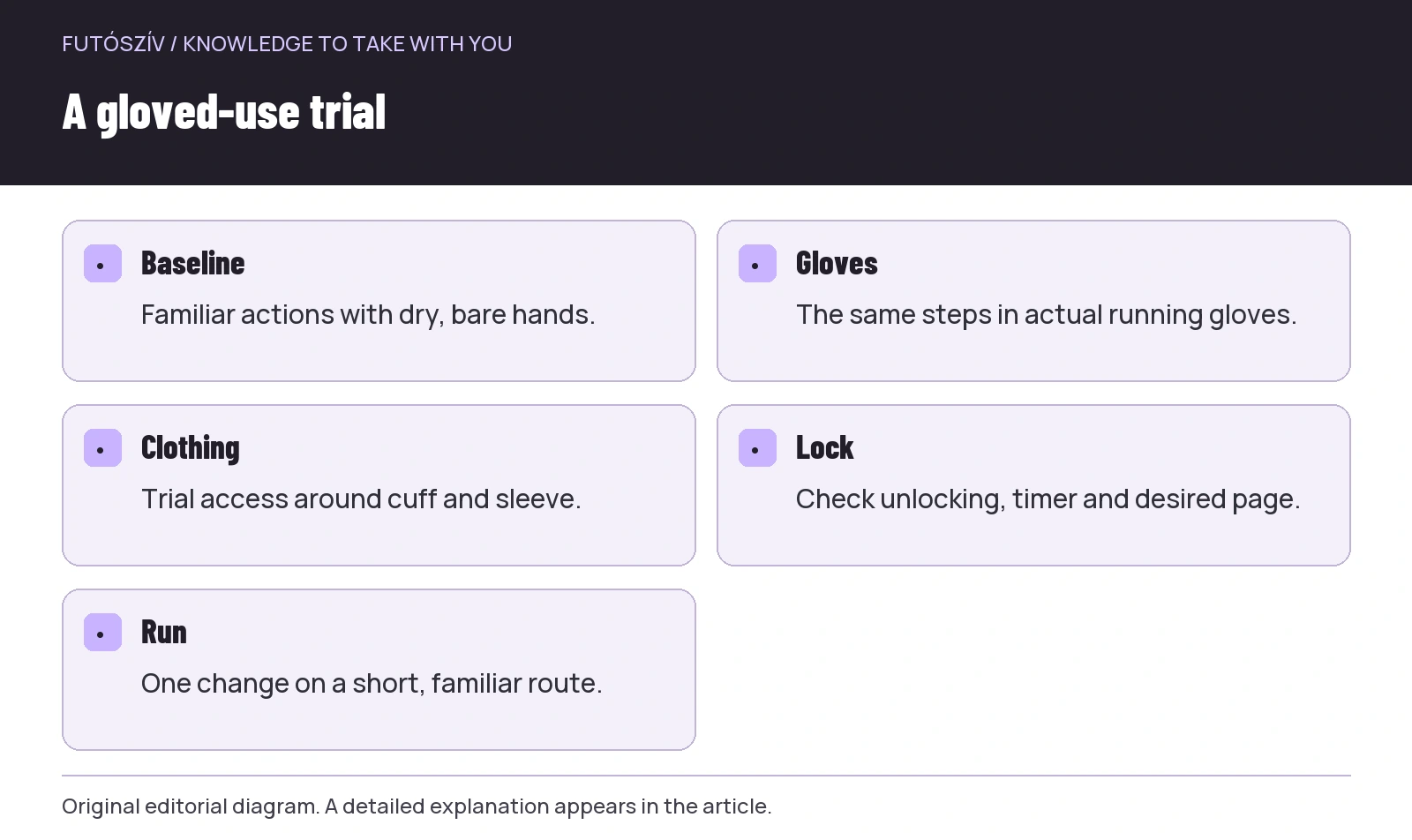
- Baseline
- Familiar actions with dry, bare hands.
- Gloves
- The same steps in actual running gloves.
- Clothing
- Trial access around cuff and sleeve.
- Lock
- Check unlocking, timer and desired page.
- Run
- One change on a short, familiar route.
Know unlocking as well as locking
A working lock helps when you can reliably exit it if needed. Check whether it needs a long press, combination or another action. Be familiar with the unlocking instruction. If your gloved finger shifts during a long press, practise a steady hold calmly. Do not assume the same method in older and newer software. Apple’s guide also identifies different previous unlocking behaviour.
After unlocking, do not check only whether the screen changes. Check the activity timer is running, which page is active and whether recording was paused. Separate button and touch locks can leave different situations. Make a short sequence: “unlock, check status, desired page”. Familiar order prevents continuing after an uncertain action. A system is comfortable when important status is recognised at a glance.
Assign shortcuts to your own task
If customisable shortcuts are supported, first read available functions and conflicts. Not every long press can be reassigned, and some combinations affect other system functions. Choose an action genuinely needed while running and understand accidental activation too. Quick map, lock or page access can help only if unlocking and returning are equally familiar. Test the setting dry and gloved, then inspect the real starting state.
Sometimes less operation is better than faster operation. If constantly switching among three pages, their structure may need changing. If you do not use the lap button, check suitable prevention settings without disabling a function another important action relies on. Automatic changes and alerts are worth considering, but learn their operation first. The aim is not having the watch do something for you constantly, but making necessary actions easy to reach.
A short outdoor trial on a familiar loop
After the home trial, choose a short, easy, familiar run. Do not test new gloves, a new jacket and completely redesigned watch views together initially. Observe one modification, such as cuff position or disabling touch during sport. Stop safely for actions if necessary. Do not test at the expense of traffic or technical-ground attention. The recording can later reveal accidental pauses or laps, but error-free data do not prove usability in every condition.
After running, note easy tasks and uncertainties. The final setup is good when you find the important button, recognise feedback, clothing does not trigger accidental actions and you can exit a lock calmly. If a situation needs glove removal, plan that too rather than treating it as a hidden flaw. Appropriate watch use is not about touch or buttons winning generally, but reliably performing necessary steps with little attention in your own equipment and run.
Sources and further reading
- Apple – using Water Lock
- Garmin Forerunner 265 – system settings
- Garmin Forerunner 570 – Device Care
How Futószív articles are prepared: our editorial guidelines.