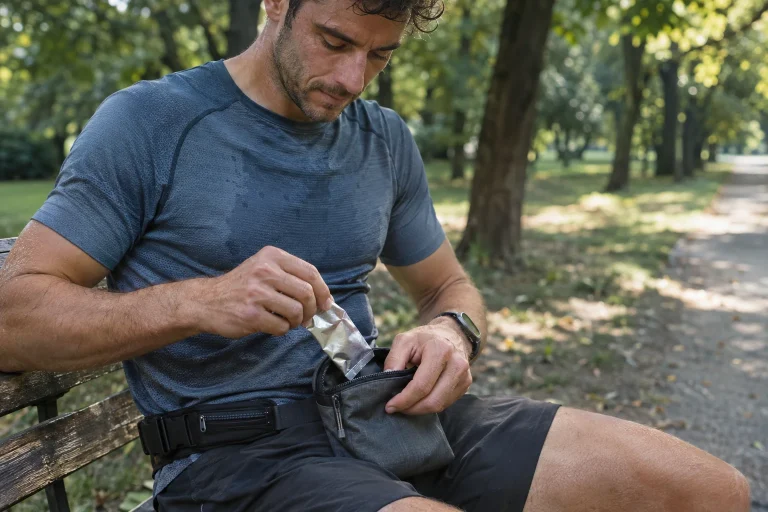
Choosing a new sports watch is a purchase decision; moving a training log is a data-management task. Old routes, laps, heart rate, titles and personal notes may not live in the same file, and a new system may not accept them identically. Give transfer its own workflow. First identify what to preserve, make an unchanged backup and test import with several different sessions. The aim is not identical screens in two apps, but valuable history that remains verifiable and accessible later.
Decide first what moves where
History on the watch, the manufacturer’s web log and an external training platform can be three places. Buying a watch does not necessarily require changing the old log. A familiar external service may remain the primary archive while the new manufacturer app handles fresh recordings and settings. Alternatively, you may want all previous workouts in the new web log. Write the aim in one sentence; it determines useful export, import and checks.
Separate completed workouts from routes and future plans. A planned GPX track differs from a run recorded with heart rate and timestamps. Sport profiles, screens and alerts belong to watch settings, not necessarily past activity files. Treating these as one “all my data” package makes missing items hard to identify. Make a four-line inventory: workout files, personal notes, routes and settings. Name current and intended locations for each.
Back up before making changes
Before deleting an account, disconnecting an app or resetting an old device, make an official export. The Garmin export information distinguishes original individual activity files, different formats and a full account-data request. A summary table differs from detailed time-series workout files. Read what the selected export contains rather than only checking that some download started. Actual backup contents matter more than file size.
Keep the original package unchanged and use a working copy for import. A folder name can include export date and source system without personal details. Check the download opens and is not empty. For a ZIP archive, inspect activity subfolders. Do not write passwords alongside it or upload the entire log publicly merely to show one run. Routes and sensor series can contain personal information.
 Enlarge diagram
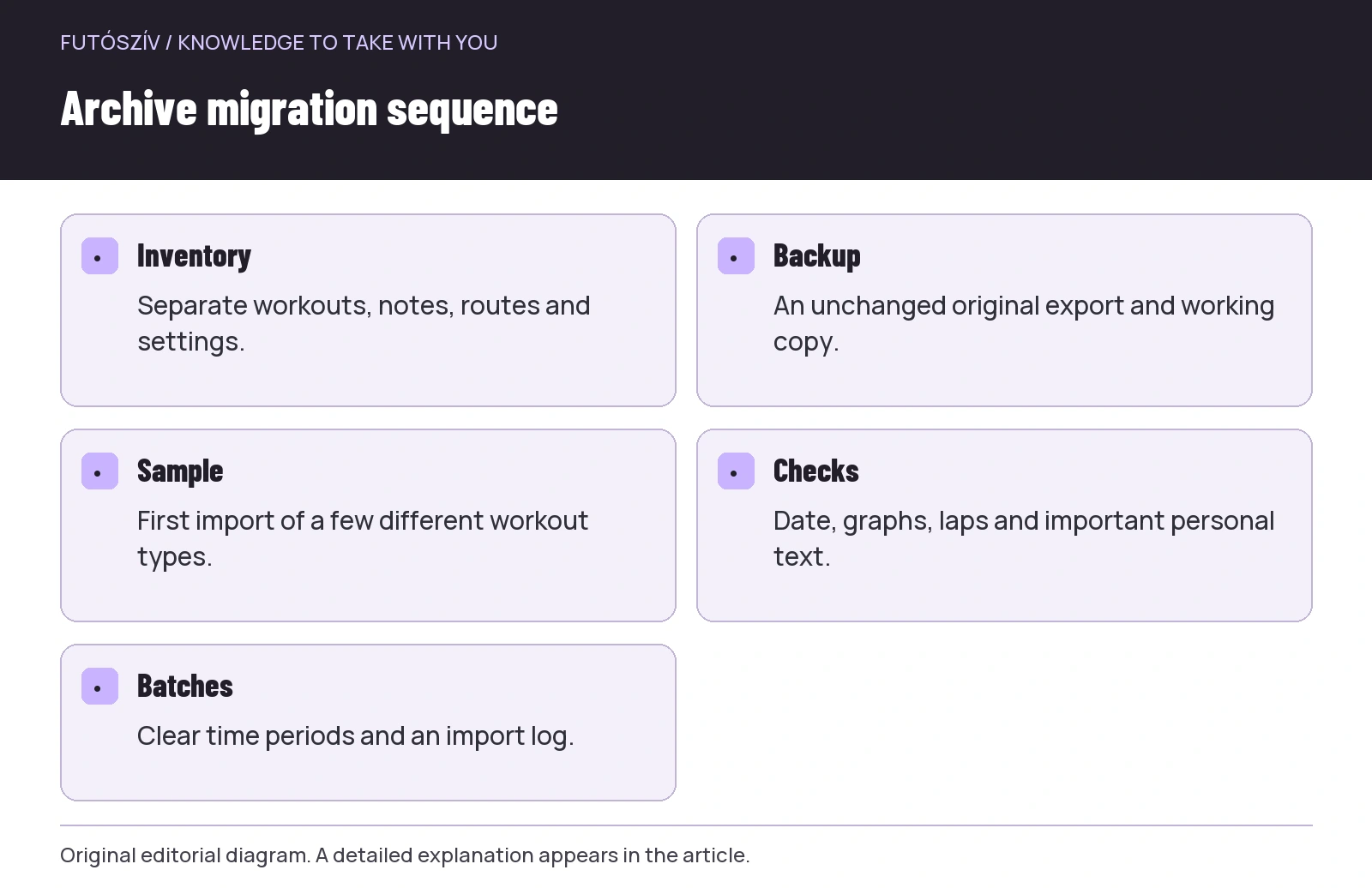
Text version of the diagram
- Inventory
- Separate workouts, notes, routes and settings.
- Backup
- An unchanged original export and working copy.
- Sample
- First import of a few different workout types.
- Checks
- Date, graphs, laps and important personal text.
- Batches
- Clear time periods and an import log.
What can you expect from file formats?
A format name is not a contents list. FIT, TCX and GPX can carry different data, but actual exports also depend on what the source recorded and the service writes. The Polar guide to individual workout export , for example, distinguishes saving routes and other training data by format. Do not convert the entire archive automatically to GPX assuming a visible track means every other item survives. Examine original-export options first.
CSV can help a summary list or inventory, but not every CSV has second-by-second sensor data. One file may contain one row per session, another many measurement points for the same session. Both can be correct tables serving different aims. Support for one CSV type does not mean the receiving system understands every similarly extended file from another programme. Renaming an extension is not conversion: changing a table’s name does not make it a FIT file.
| What to preserve | What should you check in the export? | What should you inspect after import? |
|---|---|---|
| Basic run data | Date, start time, sport and duration | Did it reach the correct day and sport type? |
| Route | Are actual position data included? | Did the whole trace appear? |
| Sensor data | Expected heart-rate, step or other series | Are they visible and assigned to the right time? |
| Laps | Are lap boundaries in the recording? | Did separate sections survive? |
| Personal note | Is it in the file or separate account data? | Was it transferred, or is a separate archive needed? |
| Manufacturer estimate | Is it exportable at all? | Does the new system interpret or recalculate it? |
Read receiving-platform support separately
Exporting a file does not guarantee the new system can accept it. Find official import instructions and check file type, size limits and expected data. The Garmin upload-error information , for example, specifically notes time information is needed to upload a GPX activity. A bare line from a route planner may therefore not import as a completed workout. Clarify the target type: routes, activities and training plans are not interchangeable.
Import may work on a web interface even when not in the same place in the mobile app. Follow current steps in receiving-platform help. Do not assemble a solution from several old screenshots if the interface has changed. Before considering a paid intermediary, check whether official export and import handle the basic task. Permissions and supported data matter for intermediary tools too; convenience does not remove the need for backup.
Choose a varied sample
Do not transfer every workout first. Choose several different recordings: a simple outdoor run, a lap-based session, an indoor activity and an older entry. Multi-sport recordings may need separate attention. Include an example with an important personal note. The sample aims to reveal differences, so five almost identical runs are less informative than four different ones. Inspect each in the old system beforehand and record key details.
After the first import, compare more than headline numbers. Check date, start time, sport, route, sensor graphs and lap boundaries. Another time zone or display setting can change visible times; do not immediately confuse this with data loss. Different elapsed- and moving-time interpretations can also produce differences. Polar’s information notes other services may filter or recalculate too. Clarify the reason rather than manually making every displayed number identical.
Your own text deserves separate attention
Workout titles, notes, photos and social responses do not necessarily travel with detailed measurement files. If you have used the log as a personal journal for years, this can matter as much as the route. Inventory it separately and inspect the full account export. The Strava export guide also treats individual activity files and full archive requests separately. An element found in the archive may still not import automatically into the appropriate new-log field.
If important notes cannot transfer conveniently, create a searchable personal archive while preserving originals. Keeping the old system for reading may be simplest while new workouts are created elsewhere. This can be a deliberate choice, not failed migration. Know where material is found up to which date, and do not delete the source unchecked. Claim full transfer only after reviewing the data types important to you individually.
 Enlarge diagram
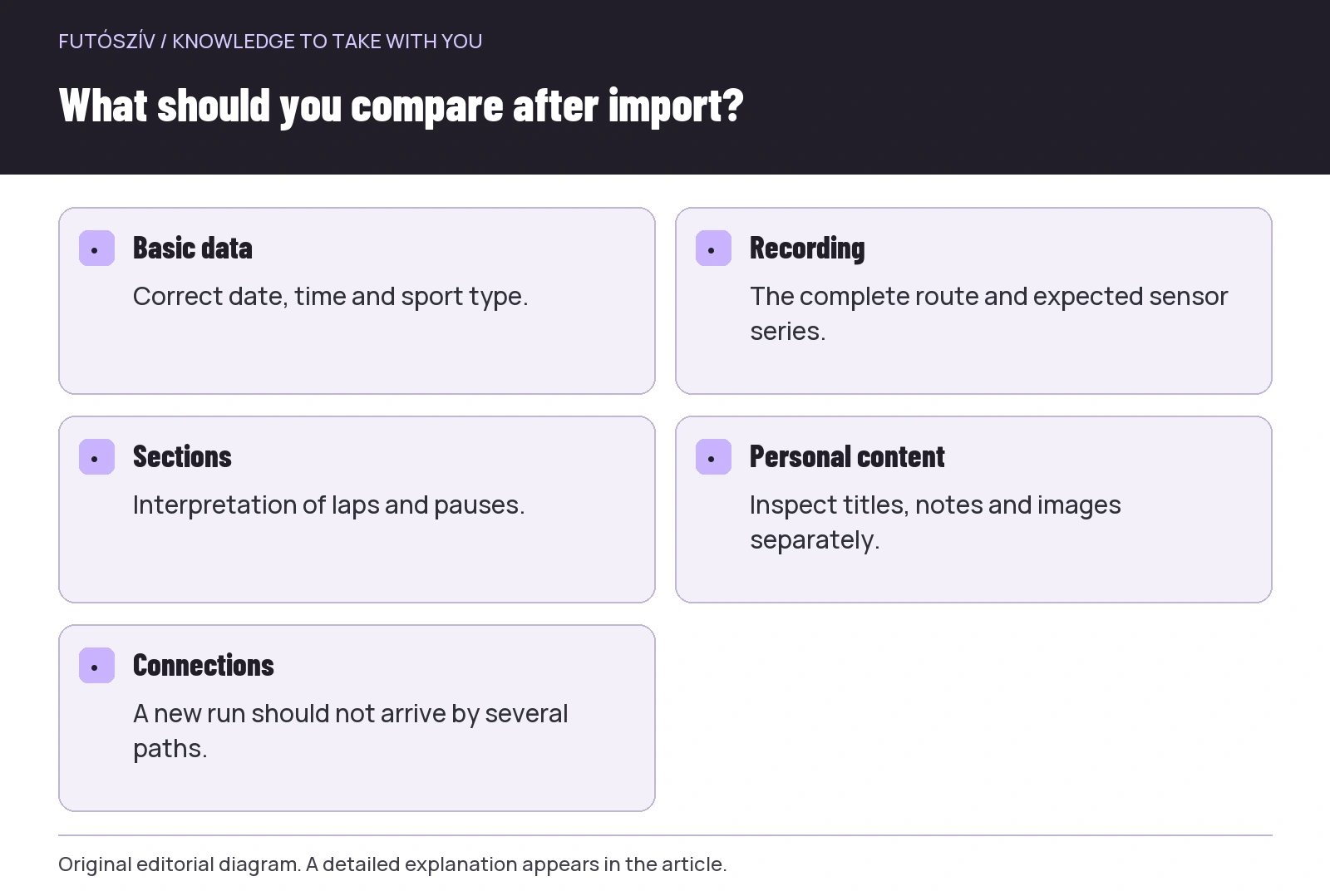
Text version of the diagram
- Basic data
- Correct date, time and sport type.
- Recording
- The complete route and expected sensor series.
- Sections
- Interpretation of laps and pauses.
- Personal content
- Inspect titles, notes and images separately.
- Connections
- A new run should not arrive by several paths.
Avoid a duplicate-producing connection loop
Before enabling automatic sync, draw data directions between services. For example, watch uploads to manufacturer, manufacturer sends to shared log and an intermediary sends the same activity there again. One run can then arrive by several paths. Archive import and fresh sync can also collide if the starting date is unclear. Keep an import list: which period, which source and when. Do not regard duplicate detection as guaranteed protection for every file variant.
If duplicates appear, identify the clearly original or desired copy first and check whether others have separate notes or processed data. Do not delete in bulk solely by matching titles. Two genuine runs on one day can look similar, while an altered file may carry a different identifier. For disconnected services, confirm further sending actually stopped. Fixing the connection path comes first, or the problem can return after manual cleaning.
A workout file is not the entire watch system
The former manufacturer’s long-term measures, badges, load model or recovery estimates may not transfer with the same meaning. A new system may use its own inputs and calculations, so importing old sessions does not guarantee restoring previous status indicators. Do not falsify data to make a graph look continuous immediately. Record system- and device-change dates as important context for later interpretation. Preserving history and transferring every algorithm are separate goals.
Set sport profiles, alerts and sensors separately on the new watch. A photo of the old screen can remind you of your intention, but do not copy abbreviated field names unchecked. Similar names in the new system may use different averaging or sources. Pairing an existing external sensor is separate too: an archived pulse graph appearing does not prove the same sensor records the next run. Migration has two parallel strands: preserving the past and configuring future recording.
Import larger amounts in verifiable batches
Once the sample is sound, proceed in clear periods. After a year or a few months, check entry counts and select some random and distinctive sessions to inspect. Log date range, source folder and any error. Do not overwrite faulty files in the original backup; address a working copy if necessary at all. Before repeating an import, check whether part already arrived. This keeps the process resumable after interruption.
At the end, be clear where the unchanged export is, which period transferred, which data remain separate and which service becomes the primary log for fresh sessions. Decide about wiping the old watch or closing accounts only after checking access to preserved data. A new watch fits your system when the first new run arrives cleanly and old history does not become an uncertain file heap. Thoughtful migration produces verifiable continuity whose limits you also understand.
Sources and further reading
- Garmin – How Do I Export Data Out of Garmin Connect?
- Polar – exporting individual workouts
- Garmin – Unable to Upload an Activity File
- Strava – How Do I Export My Strava Data?
How Futószív articles are prepared: our editorial guidelines.