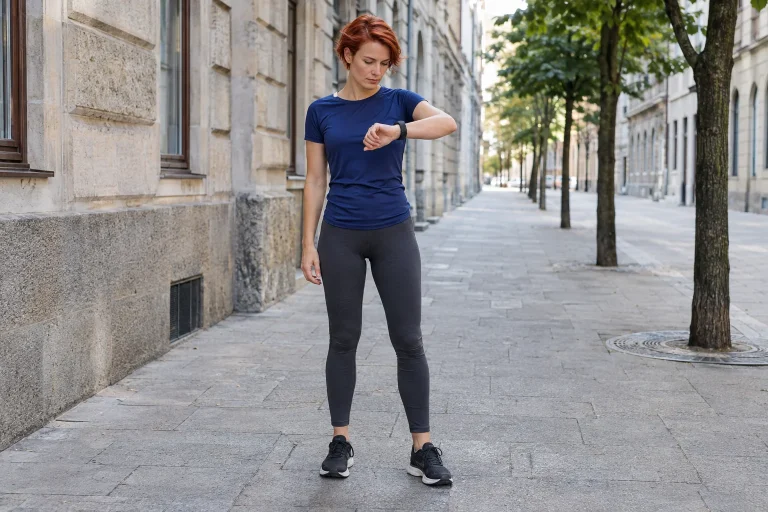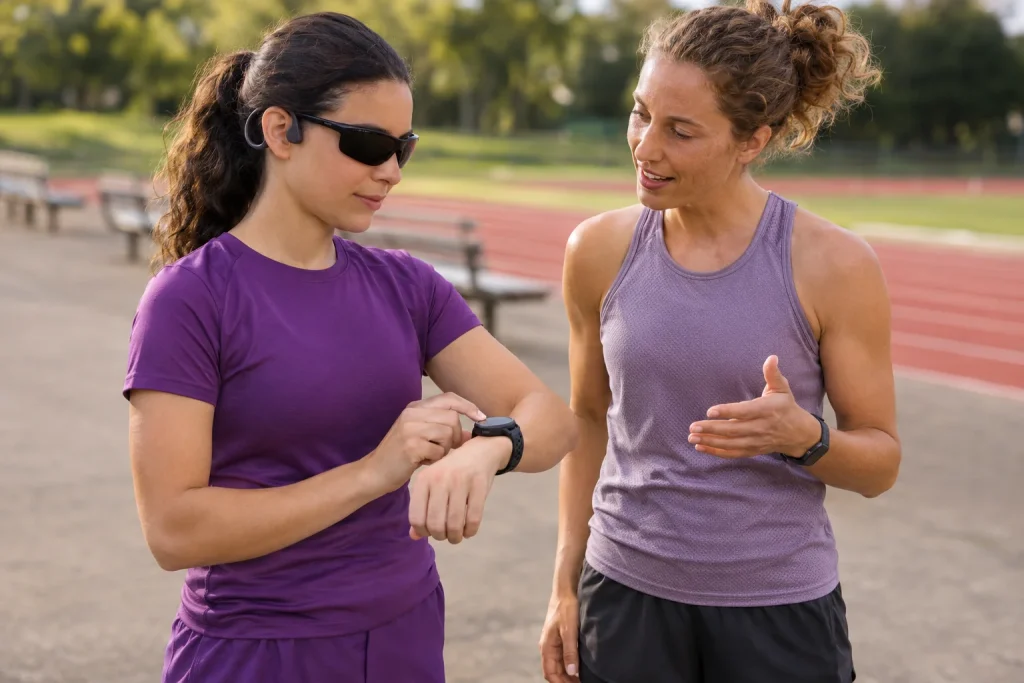
Assess usability across the entire workout process
A watch announcing kilometre pace during a run does not necessarily mean you can start, pause and save a workout without looking at it. Accessible use is not the name of one spoken feature, but a process you can complete. Start with the task the user wants to handle independently, the information that matters to them and the signals they can comfortably perceive in that environment. A brief “audio feedback” line in a specification cannot establish this.
Operation without looking can help in many situations: a visually impaired runner, a display difficult to read in bright sunshine or a workout where you do not want to keep turning your wrist. Needs still differ. One person requires a full screen reader for menus, another only occasional lap feedback, and another combines vibration with higher contrast. No solution should be recommended as a compulsory package for everyone.
Define the trial’s success criteria concretely: selecting the correct running profile, recognising that timing has started, managing a stop and finding the completed workout. These are separate tasks with separate potential failures. Checking only the automatic kilometre announcement in the middle can leave barriers at the start or when saving. The trial situations in this article are our practical checking suggestions, rather than universal menu sequences.
Screen readers and workout announcements are separate services
The Apple VoiceOver guide describes a screen reader that speaks selected interface elements and uses its own gestures to operate the watch. Selection and activation can be separate: with VoiceOver, double-tapping performs the selected item’s action. The service can be enabled on the watch or through accessibility settings on the paired iPhone. It supports navigating the interface, rather than simply announcing workout data occasionally.
The Apple Workout guide separately describes a Voice Feedback setting for spoken information about important workout alerts and progress towards Activity rings. The names can suggest a similar purpose, but the features do not automatically replace each other. A watch speaking at the end of a lap does not establish that the sport-profile selector, confirmation dialogue or complete setup of a third-party app is usable for you.
In practice, an automatic announcement is triggered by an event, while you direct a screen reader among interface elements. For the first, ask which event triggers it and which data is spoken. For the second, ask whether the required control is reachable, its name understandable and its action confirmable. Both may be useful together, but only a combination actually tried should be described as solving a particular task.
 Enlarge image
Follow the audio route from its source to your ears
The Garmin support information on audio prompts distinguishes several routes: on compatible devices, Garmin Connect can play prompts through a phone, while some watches can send them directly to paired Bluetooth headphones. The exact model and feature matter. Headphones connected to a phone do not necessarily receive the same audio source as those paired directly with the watch. Having a connection and routing the desired announcement are separate checks.
The Venu 3 manual, for example, lists announcements linked to lap, pace, heart-rate and timer events, along with audio-output settings; it notes that the option is not available for every activity. Do not transfer this as an identical feature list to every Garmin watch. Before buying or configuring, find the event you actually need in that model’s own documentation.
A short sentence can describe your chain instead of a diagram: “watch, phone app, headphones paired to the phone”, or “watch, directly paired headphones”. Add which component supplies the speech voice and language. If sound disappears, you no longer need to toggle the whole system at random. Check the output first, then the source event and finally the connection between them, changing conditions one at a time.
Begin the trial while standing still or seated
Work through starting in a familiar, quiet place. Select the desired profile, start timing and check the active state through feedback you can actually perceive. Noticing a button press differs from receiving confirmation that the workout has begun. A physical click alone does not establish that the correct action occurred on the correct screen.
Next, try pausing and resuming in the same place. Notice whether their signals differ and whether they can be distinguished from an automatic stop. If the same brief sound means several states, another checking method may be needed. Avoid starting an important session when starting, connection loss and pausing are all conveyed by a beep you find uncertain. Evaluate the task through the user’s own perception.
At the end, check the saving confirmation and finding the summary too. If “end” is followed by separate save or discard choices, their accessibility may matter more than an impressive graph. Trial data can be deleted later, but first clarify what each action does. A helper supports well by describing observations and assisting according to the user’s choices, rather than quietly completing difficult steps for them.
Reduce information during movement to what serves the goal
Many watch settings can speak at once: lap alerts, heart-rate limits, pace limits, workout-stage changes and phone notifications. A theoretically rich flow can become hard to follow while moving. First choose which information actually changes a training decision. A relaxed, duration-based loop may need different feedback from a pre-planned interval workout. Every available field need not become sound.
In an illustrative planning example, lap information announced every six minutes produces about ten spoken events in an hour. Add another pace alert every minute and many phone notifications, and your speech listening starts following device interruptions rather than the run’s rhythm. This is not a product limitation; it simply shows that event frequencies add up. Judge usefulness within the entire sound environment.
Leave attention for environmental sounds and any running companion’s signals too. Open-design headphones or lower volume do not automatically guarantee situational safety. Choosing a suitable place and route, and agreeing signals with a helper, remain part of the process. If a complicated setting needs searching mid-session, stop somewhere calm to handle it rather than forcing uncertain menu operation while moving.
Language, vibration and display: details determine usability
Try the actual language and spoken units you use. Pace per kilometre, a speed value and lap time are different information even if all involve spoken numbers. If speech is too fast or unclear, the relevant setting may not be in the workout-alert menu. The phone’s speech synthesiser, watch speech settings and an app’s own voice may operate through different routes.
Vibration can provide a quiet, personal signal, but is clear only when you recognise the event it represents. Try it with your usual running clothing and strap setup too. A jacket, looser device position or several signals arriving in succession can affect perception. Someone finding speech inconvenient does not automatically make every vibration pattern an appropriate alternative.
Visual cues can also supplement other methods: larger data, a simpler screen and fewer fields may help someone with partial sight of the display. For another person, the screen will not form part of the workflow at all. Do not judge accessibility by how well you can read a demonstration screen. Let the user identify the combination that provides more reliable, comfortable and independently manageable information.
 Enlarge image
What happens if something stops working as usual?
After a normal start, it is worth understanding a simple failure scenario too. What do you hear, for example, if the phone speaker becomes the active output instead of headphones? Can you restore sound while stationary? Try this in a calm environment on your own devices, rather than interrupting a connection somewhere you currently depend on its signals for orientation. The aim is to recognise the state, not merely cause a fault.
Check touch operation separately with wet hands, gloves or touch lock enabled. Effects vary between models, so select a control method from your own manual. If you also use physical buttons, learn each function for the particular screen and state. The same button can perform another action elsewhere; a movement familiar from a previous device does not establish how a new watch behaves.
After an update or app change, repeat the key few steps. You need not create a fresh examination of every menu, but recheck access to start, pause and save if the layout or audio handling changes. Notes on the previously working solution also support precise fault reports. Instead of “it doesn’t speak”, you can identify which app’s event was inaudible through which output.
A user trial sheet adds more than a feature tick
Five concrete tasks are enough for your trial sheet: profile selection, start confirmation, requesting or hearing necessary data, managing pause and finding the saved workout. For each, note whether it worked independently, which signal confirmed the outcome and where help was needed. This is not a test of personal ability. It examines the fit between system and chosen task, so an unsuccessful point guides improvements to settings or process.
Before buying, ask for demonstrations of these tasks. Instead of accepting “it has audio”, ask to see how the running profile is found with a screen reader and how saving is confirmed. If an important app is only partly operable, record that precisely. The existence of an operating-system screen reader does not automatically establish the usability of every control in every third-party app.
The best outcome need not involve the largest number of speaking devices. It may be a watch that starts simply with occasional recognisable signals, or a screen-reader system with detailed control. What matters is that the runner understands what is happening and can act towards their own goal. Technology supports this best when the whole journey is accessible: from the first profile selection through information during the run to reliably finding the saved workout.
Sources
- Apple: VoiceOver
- Apple: Workout and Voice Feedback
- Garmin: audio-feedback routes
- Venu 3: specific spoken workout alerts
How Futószív articles are prepared: our editorial guidelines.