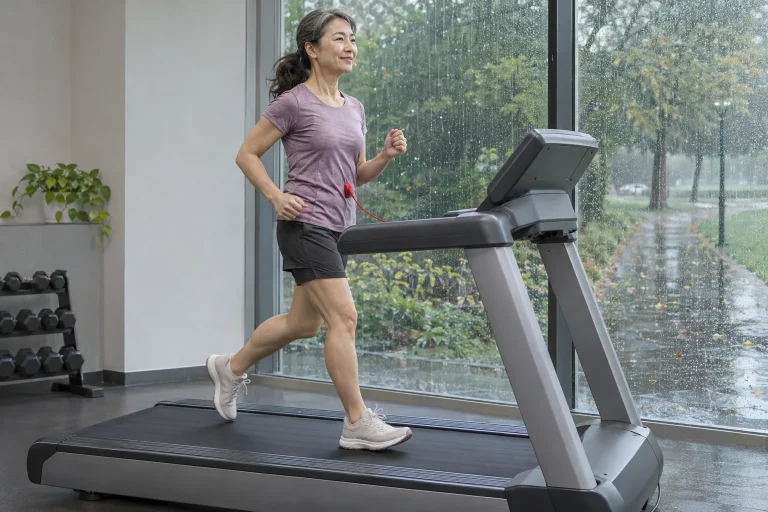
An interesting feature of the 2026 SOLE F80 is its two kinds of display: the touchscreen can provide content and detailed workout views, while separate LED windows show exercise data. This can be a useful foundation for a home system that does not require reaching for your phone for everything. Yet screen diagonal alone does not determine usability. What matters is whether the data and controls important to you remain accessible once you are moving.
This article starts from US F80 documentation and SOLE’s international specification checked on 21 November 2026. We add our own comparative calculations, a display-testing plan and a multi-user workflow. We have not tested the machine in training; the suggested checks are tasks to perform on the particular unit. Model year matters because an earlier F80 bearing the same name may have a different interface, motor and charging arrangement.
What can be identified on the current F80?
The current US product page lists a 3.25-horsepower motor, a 20 × 60-inch running surface and a 10.1-inch touchscreen supplemented by white LED displays. It lists Wi-Fi, Bluetooth audio, USB-C charging, a swivelling and tilting console, and handlebar roller controls for speed and incline. The motor’s nominal rating is not the electrical power drawn from your socket at every instant, so we do not calculate a household electricity bill from it.
Our unit conversion gives a 50.8 × 152.4 cm running surface from 20 × 60 inches. This is the belt size, not the entire machine or required clearance. The international SOLE/Dyaco specification also lists a 20 × 60-inch surface, with external dimensions of 1967 × 910 × 1510 mm. Draw the open machine and operating clearance as two separate layers on the room plan.
Regional figures differ: the US page gives a 350 lb capacity, while the international specification states 150 kg or 330 lb. When buying, use documentation supplied by the local distributor for the actual unit. An older-machine demonstration using the same F80 name does not establish every feature of the 2026 version. Identify the machine before trying its screen functions.
Our screen calculation: what does 10.1 inches tell you?
A stated screen diagonal is a single length. It does not directly reveal font size, interface layout, reflections or touch-target size. For our geometry example, assume a 16:9 rectangle with a 10.1-inch diagonal. Its 25.654 cm diagonal yields approximately 22.36 cm width and 12.58 cm height. This illustrates an assumed aspect ratio; it is not a measurement of the F80’s active display area.
Calculating a 15.6-inch rectangle at the same assumed aspect ratio gives approximately 1.545 times the linear dimensions and 2.386 times the area. Screen area therefore does not change simply by the difference between diagonals. A larger area only makes the interface easier to read if the software actually gives the relevant elements more space.
In your own viewing position, try a specific task: read elapsed time, current speed and the remaining section from where you use the machine. First inspect console position and lighting with the belt stationary. The aim is to avoid having to lean forward or search through content. Readability cannot be established from the camera angle in an advertising photograph.
Content and exercise data should fit alongside each other
The 2026 US manual describes full, partial and minimal interfaces for media content. They differ in how many status bars, data fields and control panels remain visible. It also describes the LED windows’ data. Build a layout in which you still know where to check the current running status alongside your chosen video; full-screen content is not the most useful choice in every situation.
Write down three priorities for your screen plan. First comes what you must reach directly while moving, such as stopping. Second is what you want to see at a glance, such as speed and time. Third is convenience content, such as video. This order helps choose a view. If the third item regularly makes you search for the first two, the layout does not yet suit your use.
As a test task, select one item of content in advance, then check how to return to workout data. Learn this while stationary; do not explore unfamiliar menus during a faster section. The practical question is whether you can perform a known operation without unnecessary steps. This learned route gives the large display its value, rather than the number of icons that fit on its home screen.
 Enlarge image
Built-in apps and screen mirroring: two separate routes
SOLE’s manufacturer comparison lists Wi-Fi, Bluetooth and mirroring for the F80. The manual describes pre-installed apps and mirroring phone content to the console. In the first case, you launch a service on the machine interface; in the second, your phone’s content appears on the display. The routes may require different logins, permissions or phone settings, so test them separately.
If a particular streaming service attracts you to the machine, bring its exact name, your phone’s operating system and intended content to the demonstration. The manufacturer’s word “mirroring” alone does not establish that every app’s protected content will appear in your chosen setup. The useful acceptance question is whether your intended content starts and works on the particular machine, rather than merely whether a mirroring menu exists.
Displaying content is not workout control. Showing an instructor’s video at a large size does not automatically adjust belt speed. Give video, audio, workout-data transfer and machine control separate columns in your usage notes. Successful video playback then does not become an erroneous promise of automatic operation across all apps.
Wi-Fi and Bluetooth: a home test with a specific purpose
Wi-Fi relates to online console content, while Bluetooth can serve several device connections. The international F80 specification lists SOLE+, Zwift and Kinomap apps and a Bluetooth heart-rate receiver. Commands between a particular external app and the machine still require separate verification. Audio transmission, a heart-rate signal and a summary uploaded to the cloud are different operations.
Test the network at the machine’s final location. A phone video working well in the middle of the living room does not show how the console behaves in another room behind a door or wall. Start the chosen content with the machine stationary, check login and audio, and record the successful setup. Treat playback observed on one day as your own test result, rather than a general network guarantee.
When a fault occurs, break the task into parts. If content will not load, investigate network and service status. If the picture works but audio is missing, follow a different branch. If the workout has ended on the machine but does not appear in the phone log, investigate the saving path. Separately recorded symptoms help support more than the all-purpose statement “Bluetooth does not work”.
User profiles: one machine, separate workout histories
The manual examined describes guest mode and local profiles; a local profile can link to a SOLE+ account. The specified system handles up to nine profiles, with a profile code as a separate protection option. Local history can hold up to ten workouts, making the app-account connection important for fuller history. These are figures from the documentation examined, rather than a claim that the on-screen list is an independent, unlimited personal archive.
In our two-user household example, Anna and Bence run on the same machine but keep separate logs. Anna selects her own profile before starting and finds the workout in her own SOLE+ history afterwards. Bence checks that his profile is active rather than continuing Anna’s session. This simple handover is more valuable than mixing every family workout under one name and sorting distances afterwards.
The machine profile, SOLE+ account and login for an external video service may be three separate things. Include all three in your handover list. Before guest use or servicing, know what personal information is visible on each interface and how to sign out of the relevant account. A profile code does not justify leaving personal accounts signed in unchecked across every other service.
Saving to SOLE+ and onwards to your chosen destination
SOLE’s Strava-integration explanation describes sending completed workouts through SOLE+ by configuring the Health Apps connection. Open the activity in the destination account separately. A “done” summary on the console and a complete activity visible in an external log are different checkpoints. Your workflow should address both.
For the first data test, list a few fields: start time, duration, distance, average speed or pace, and heart rate if a suitable source was present. Find the same fields in the machine summary, SOLE+ and destination system. Labels need not be identical, but know what each represents. An empty heart-rate trace is not a failed run; it indicates a measurement or transfer field that needs clarification.
If you also record on a watch, decide beforehand which device is the primary data sender to your chosen log. Two parallel export paths can easily create two copies of one workout. Later comparisons are possible when data origin and settings do not change unnoticed. For interpreting differing distances, our guide to treadmill and watch distance discrepancies provides a separate investigation sequence.
Understand the configured task rather than the programme name
The international F80 specification lists manual, profile-based, interval, custom and heart-rate-related programmes. “Fat Burn” or “Fitness Test” is a function label: by itself it does not establish personalised weight loss, laboratory testing or medical suitability. Actual speed, incline and duration matter in the selected programme. The factory maximum is not a beginner training plan intended for you.
In our programme-reading example, two equal-length blocks could be 60 and 80 per cent of the specified maximum speed. Choosing 10 km/h purely for illustration makes the blocks 6 and 8 km/h; a 12 km/h maximum gives 7.2 and 9.6 km/h. The same percentage diagram therefore represents a different actual task. This is our own teaching calculation, not a copy of a particular F80 programme or a workload recommendation.
When saving a favourite or template, give it a name that remains understandable: section durations and the setting date may help. An evocative “hard workout” label does not say what the programme contained. Another machine user should choose their own task rather than adopt your personal settings merely because they are easy to reach on the home screen.
 Enlarge image
A subscription-free machine can still involve service costs
SOLE advertises F80 use without a mandatory monthly machine subscription and free SOLE+ access. Streaming-service charges remain separate. The manufacturer’s subscription article also assumes use of existing external services. We do not turn advertising text into a promise that online content or a third-party app will remain unchanged, available in every country and accessible indefinitely.
Set three rows alongside each other in your decision table: basic machine operation, manufacturer account and external content. For each, note whether internet access and a personal login are needed and whether there is an additional cost for you. This clarifies which functions remain usable when you do not wish to pay for an external content service. Check actual prices against the package offered in your country.
Also consider the equipment you already use. If you watch your content on an existing large screen, the integrated interface may offer different value than in a room without any other display. This is not a general brand ranking. Within your own home system, establish which task the F80 screen solves and which still needs another device or service.
Five concrete questions to answer by the end of the demonstration
Finish the demonstration with five verifiable answers. Have you identified the exact 2026 version? Is the chosen workout view readable in your own usage position? Does your important content work over the selected connection? Are family profiles and accounts separated? Can you find the saved workout in the intended log? A short, prepared task list is more useful for these answers than aimlessly browsing every menu.
Include physical operation too: console adjustment, roller controls and the safety key should be used according to your manual. Charge only with a suitable cable routed away from moving parts and access areas; the USB-C shape does not mean saving workout files to a portable drive. Maintenance and placement tasks remain regardless of the screen’s convenience.
The F80 2026 screen adds real value when content and workout data coexist well in your routine. Before choosing, seek the few operations you will actually use every week rather than the number of icons. To compare indoor and outdoor situations, also read our article on treadmill and outdoor running differences; a good display forms part of a training environment rather than replacing all its factors.
Sources and limits of verification
Checked: 21 November 2026. Feature information comes from manufacturer documents; display geometry, the percentage-programme example, home testing and the two-user workflow are our own editorial analysis. We do not claim an independent product test, a Hungarian service package or documented medical review.
- SOLE: current US F80 product page.
- SOLE/Dyaco: international F80 2026 specification.
- SOLE: manuals by model version.
- F80 2026: US owner’s manual, profiles and display modes.
- SOLE: manufacturer comparison of F80, F85 and F89 functions.
- SOLE: subscription-free basic operation and external content services.
- SOLE: forwarding completed workouts to Strava.
How Futószív articles are prepared: our editorial guidelines.